If your browser games are lagging, stuttering, or freezing — even with fast internet — you’re not alone. One of the most common reasons for browser game lag is hardware (graphics) acceleration being disabled in your browser.
This guide explains why browser-based games lag, how graphics acceleration affects performance, and step-by-step fixes for Chrome, Edge, Firefox, and Safari.
Why Are Browser Games Lagging Even With Good Internet?
Many players assume lag is caused by slow internet, but modern browser games rely heavily on your device’s GPU (graphics processing unit) — not just bandwidth.
When hardware acceleration is turned off, your browser uses the CPU instead of the GPU, which can cause:
- Low FPS or frame drops
- Input delay and slow response times
- Choppy animations
- High CPU usage
If you’re searching for “browser games lagging” or “how to fix lag in browser games”, this setting is one of the first things to check.
What Is Hardware (Graphics) Acceleration?
Hardware acceleration allows your browser to offload graphics‑intensive tasks — like animations, WebGL, and canvas rendering — to your computer’s graphics card.
Most browser-based games depend on GPU acceleration to run smoothly. When it’s disabled, performance drops significantly.
Quick Checks Before You Start
Before changing browser settings, make sure:
- Your browser is fully updated
- Your device isn’t in battery saver or low power mode
- No system-wide performance limits are enabled
If your browser games are still lagging, follow the steps below.
How to Enable Hardware Acceleration in Chrome and Edge
These steps apply to Google Chrome, Microsoft Edge, and other Chromium-based browsers.
Steps
- Open Chrome or Edge
- Click the three-dot menu (top right)
- Select Settings
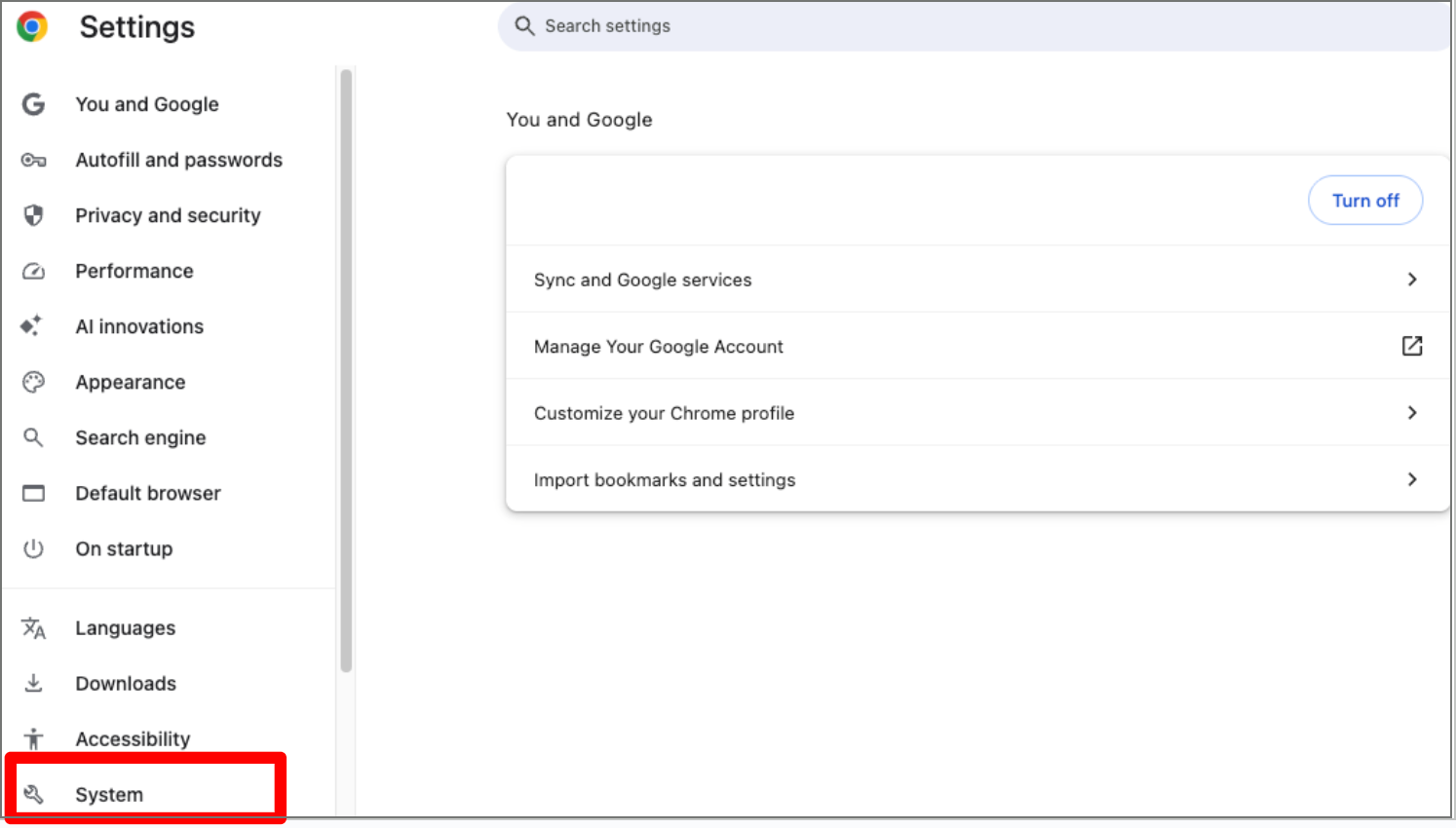
- Scroll down and click System
- Enable “Use graphics acceleration when available”
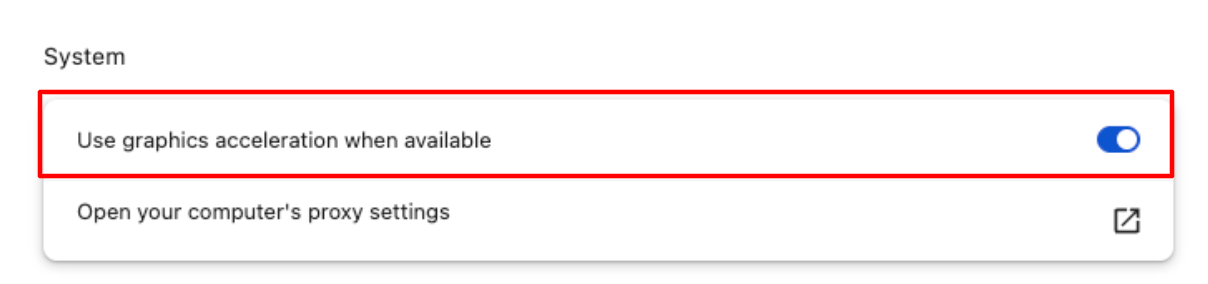
- Click Relaunch
How to Enable Hardware Acceleration in Firefox
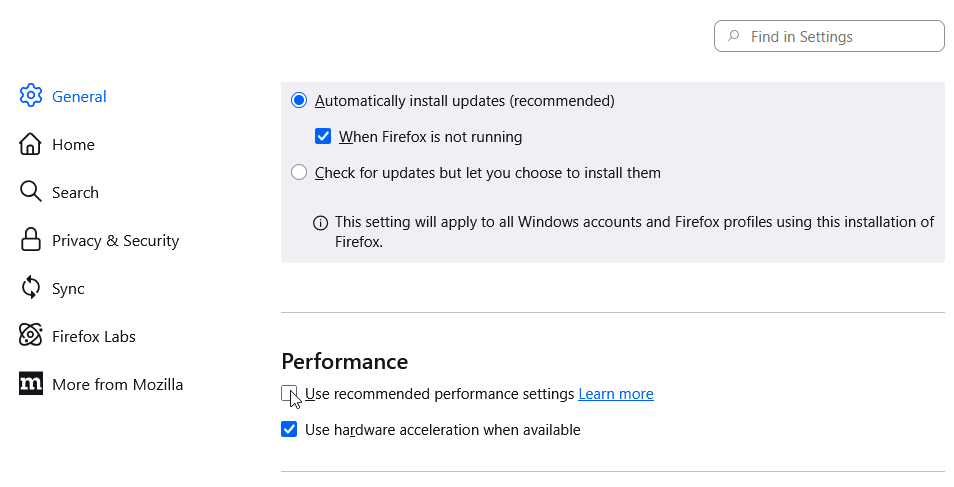
Firefox requires disabling recommended settings before enabling GPU acceleration.
Steps
- Open Firefox
- Click the menu (☰) → Settings
- Scroll to Performance
- Uncheck “Use recommended performance settings”
- Enable “Use hardware acceleration when available”
- Restart Firefox
How to Fix Lag in Safari Browser Games (macOS)
Safari uses system-level GPU acceleration, but it can be disabled via developer settings.
Steps
- Open Safari
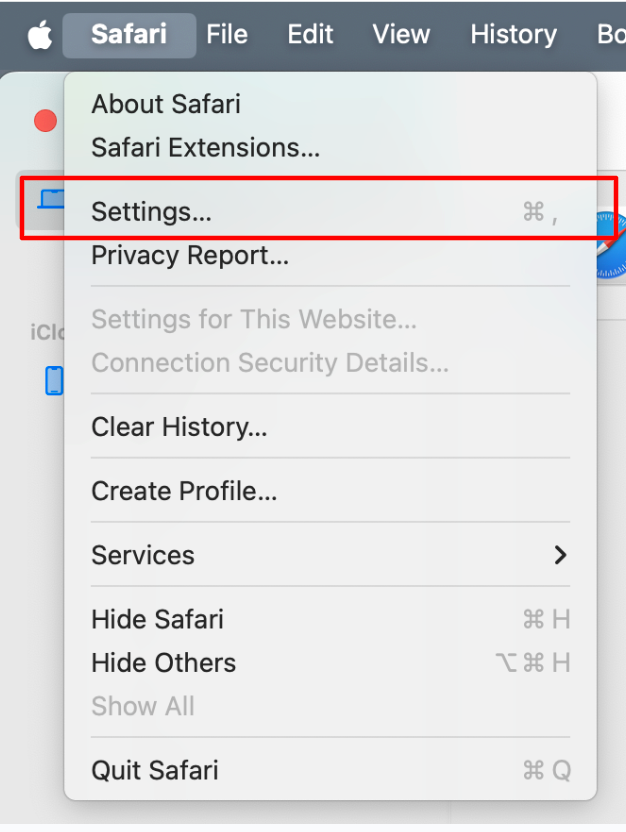
- Go to Safari → Settings → Advanced
- Enable “Show Develop menu in menu bar”
- Open the Develop menu
- Make sure these are unchecked:
- Disable GPU Process
- Disable WebGL
Safari Performance Tips
- Keep macOS updated
- Avoid Low Power Mode while gaming
- Close GPU-heavy apps
Test the Game Again
After enabling hardware acceleration:
- Reload the game
- Restart the browser if needed
- Look for smoother gameplay and reduced lag
If performance improves, hardware acceleration was the cause.
Browser Games Still Lagging? Try These Fixes
If acceleration is already enabled, check:
- Outdated graphics drivers (Windows)
- Too many browser extensions
- High background CPU usage
- Incognito/private window testing
- Overly high in-game settings
Fix Browser Game Lag Fast
If your browser games are lagging, don’t blame your internet first. Disabled graphics acceleration is one of the most common and easiest performance issues to fix.
A single setting change and browser restart can dramatically improve frame rate, responsiveness, and overall gameplay.