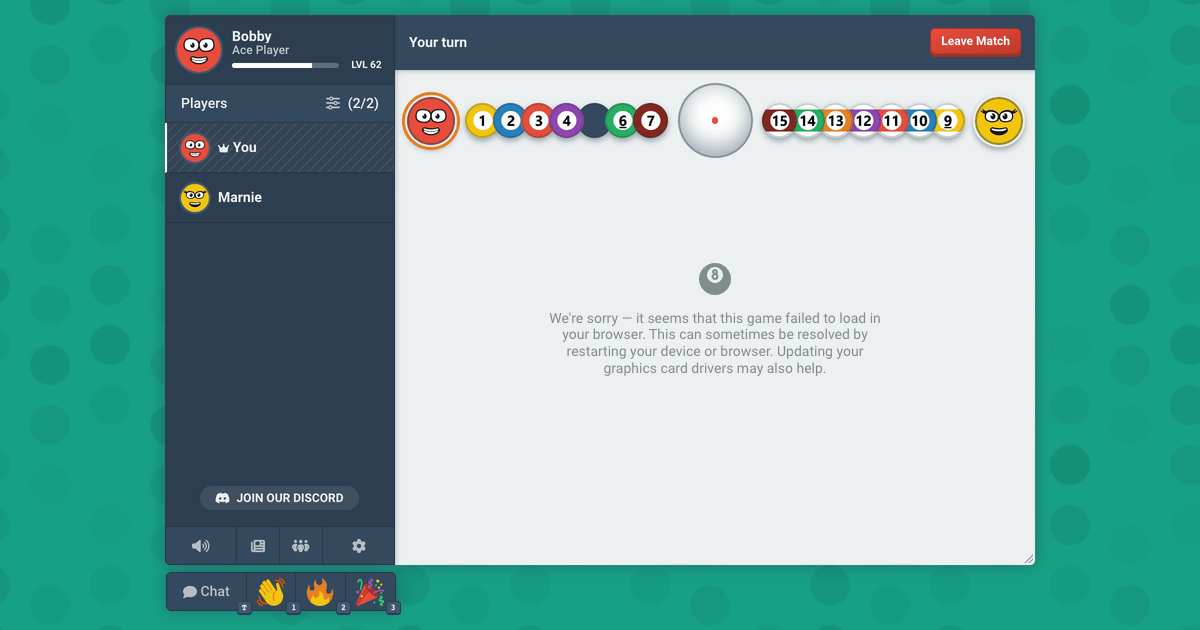
When a browser game fails to start, it's almost always due to one of a few specific reasons. Fortunately, every one of these issues has a fix you can handle yourself. Please work through the steps below in order. Often, the very first step takes only ten seconds and solves the whole problem.
Step 1: Reload the page
If you had the site open in a tab before we released an update, that tab might still be running the old version. It'll keep asking for files that no longer exist. You can't fix this from within the page itself, seeing as the page you're looking at is the part that's outdated.
- Reload the page using
Ctrl+R, orCmd+Ron a Mac. - If that doesn't work try reloading while holding the
Shiftkey. This forces the browser to fetch everything fresh instead of reusing cached files. - Start the game again.
- Sometimes a restart of your browser or computer can also resolve the issues.
Step 2: Check which games are affected
A quick look at the game list can tell you exactly which problem you're facing. This saves you from wasting time on steps that won't help.
- Only the 3D games are greyed out. Your browser isn't drawing 3D content. Move to step 3.
- Any game you start leaves you with an empty board. The files required to draw the board didn't finish downloading. Go to step 4.
- The game plays, but it feels heavy or slow. Your browser is using the processor to draw the game. Move to step 5.
Step 3: The 3D games are greyed out
8 Ball Pool, Snooker, Yacht, and Farkle all use a real 3D scene, so they require a WebGL context from your browser. If your browser can't provide one, these games will appear greyed out with a note explaining why. The rest of the site should still work normally.
Test this browser's 3D support
This asks your browser for 3D graphics the same way a game does, and shows you what it answers.
This test needs JavaScript.
Three main things can switch WebGL off, listed here from most to least common:
- Hardware acceleration is disabled in your browser. In Chrome or Edge, you can find this under Settings > System > "Use graphics acceleration when available. " In Firefox, it's under Settings > General > Performance. Turn it on and restart your browser.
- An extension is blocking it. Privacy or anti-fingerprinting extensions often block WebGL on purpose because a 3D context can be used to identify a device. Try opening the site in a private window with your extensions disabled. If that works, just add bloob.io to your extension's allowlist.
- Your graphics driver is on the browser's blocklist. Browsers will refuse to use drivers that are known to cause crashes. Updating your driver is the best fix here. Chrome and Edge can tell you if this is the issue; just open
chrome://gpuand check the WebGL line near the top.
These settings aren't remembered between visits. Once WebGL is working, just reload the page and the games should reappear.
Step 4: The board never appears
If a match starts but you're just staring at an empty board, it means the files that draw the game didn't finish downloading. We hold a match until everyone is ready, so this usually looks like the match is waiting on you earlier being called off without affecting anyone's stats.
- Reload the page and start a new match. A connection that dropped mid-download is usually the culprit, and it rarely happens twice in a row.
- If it keeps happening with one specific game but not others, those specific files are likely being blocked. This a lot happens on school or office networks that filter certain parts of a site, or if you have a strict blocker extension.
- Try playing the same game on a different connection. Using a phone's hotspot is a rapid way to see if your network is the problem.
Step 5: The game runs, but slowly
If a 3D game is running but feels sluggish, your browser is likely drawing it with the processor instead of the graphics card. This is related to the same hardware acceleration setting mentioned in step 3, and the site will usually alert you when it detects this.
Card and board games don't use the graphics card at all, so they won't be affected. Since every game here runs right in your current tab, there's nothing to install or update other than the browser itself.